How do I share a calendar with someone?
Once shared, your calendar appears for the person you chose, in their own ArkiaSuite: on their computer, their phone and the website. You decide whether they can only see it, or also write in it.
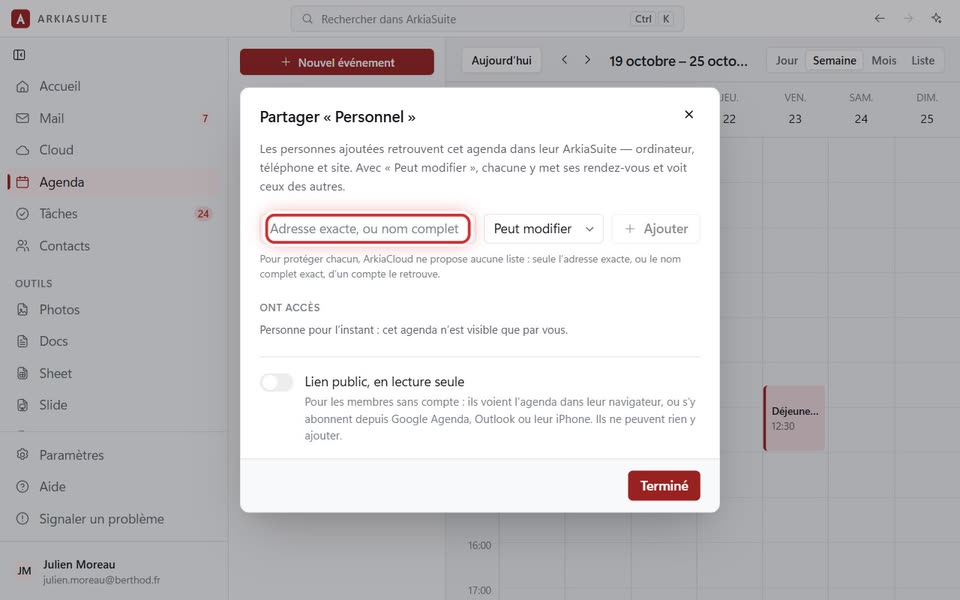
Step by step
In Agenda (Calendar), move your mouse over the name of the calendar you want to share, in the left-hand column.
Click the three small dots … that appear to the right of the name; they are labeled « Actions pour … » (Actions for …).
Click Partager… (Share…).
In the Adresse exacte, ou nom complet (Exact address, or full name) field, type the person’s address, or their first and last name, in full.
Next to it, choose Peut modifier (Can edit) (they can add and change appointments) or Lecture seule (Read-only) (they can only look), then click Ajouter (Add).
Their name appears under « Ont accès » (Have access). Click Terminé (Done).
Good to know
- To protect everyone, ArkiaSuite doesn’t show any list of accounts: only the exact address, or the exact full name, finds a person. One typo, and nobody is found.
- The permission can be changed at any time, in the same window, next to the person’s name.
- The person needs an ArkiaSuite account. For someone who doesn’t have one, see the public link.