How do I make text bold, colored or into a list?
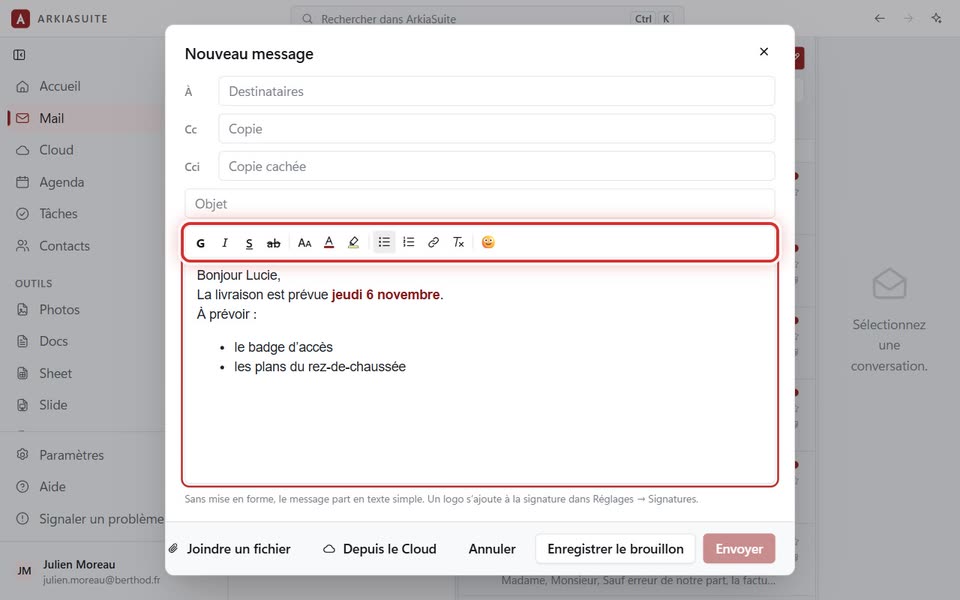
Above the text of your message, a bar changes how your words look: bold, color, size, lists.
Step by step
In the message window, select the words to change: click in front of the first one, hold the mouse button down and drag to the last one.
In the bar above the text, click G for bold, I for italics, S to underline, or ab to strike through.
For the size, click AA, then Petit (Small), Normal or Grand (Large).
For the color, click the A with a colored underline, then a color. The highlighter, right next to it, puts a colored background behind the words, like a highlighter pen.
For a list, click Liste à puces (Bulleted list) or Liste numérotée (Numbered list), then type one item per line, pressing Enter between each one.
To put everything back as it was, select the words, then click Tx (Clear formatting).
Good to know
- You can also choose before typing: click G, type, then click G again to stop.
- Couleur automatique (Automatic color), below the colors, goes back to the normal color. Sans surlignage (No highlight) removes the background.
- A message written without any formatting is sent as plain text, as before.
- Text copied from Word or a web page keeps its bold, colors, lists and links. Everything else is removed.
- On a phone, the bar is wider than the screen: slide it with your finger to see all the buttons.
- The little face at the end of the bar adds an emoji 🙂.